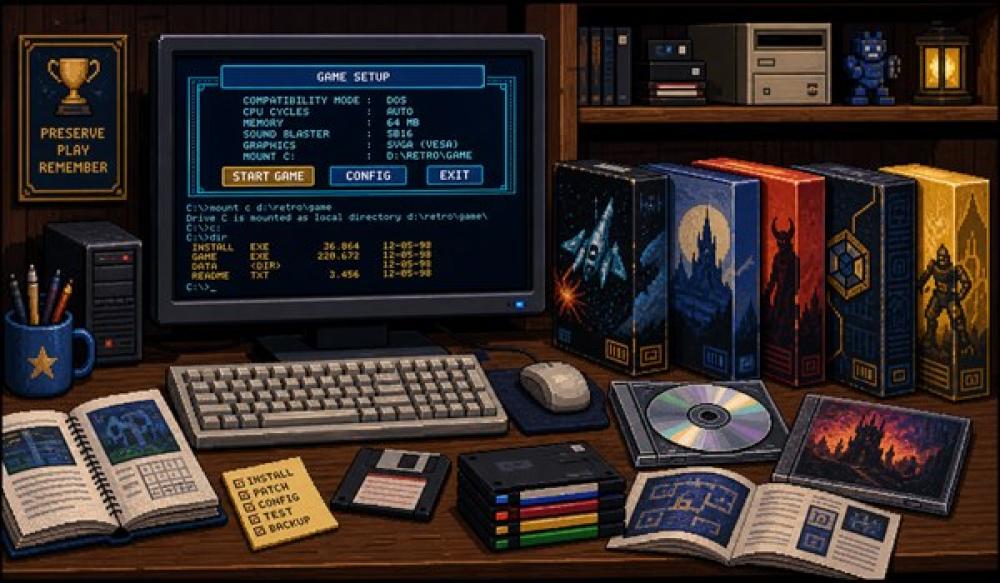


(Illustration: GamingPlanet.nl)
Preserving an old PC game is one thing. Making it start twenty or thirty years later is when the computer decides nostalgia needs technical documentation first.
Regular support for Windows 10 ends on 14 October 2025. Many PCs are therefore moving towards Windows 11, while a substantial part of the old games collection was made for DOS, Windows 95, Windows 98 or Windows XP. It creates an unusual collision: the hardware is faster than ever, but the installer from 1997 looks at it and refuses on principle.
Fortunately, there is no single secret checkbox that repairs every old game. That is also why many short guides disappoint. A DOS game, a 32-bit Windows game with a 16-bit installer and an online game whose servers have vanished can all be called an "old PC game", while having almost nothing in common technically.
This guide therefore does not begin with a download link or compatibility mode. The first step is identifying what you are actually trying to preserve and which components it needs. You can then choose the simplest solution that leaves the original material as intact as possible.
The title on the box is not enough. Many games appeared in several editions with different executables, languages, patches, copy protection or audio files. A first CD-ROM release may behave very differently from a later budget edition, magazine version or digital reissue.
Begin by recording what is in front of you. Check the platform logo, minimum requirements, year, language and version number. Determine whether the game expects DOS, Windows 3.1, Windows 95, Windows 98 or a later version of Windows. With a physical release, the number of discs and any audio tracks matter too.
Take photographs or scans of the front, back, disc label and relevant manual pages. Do not put a serial number in a public file, but do record which edition it belongs to. A loose collection of codes without context is the digital equivalent of keeping three keys and hoping one still fits the front door twenty years later.
Try to distinguish between three things:
Those three do not need to be identical. A working installation may contain patches, a wrapper or a replacement executable. That makes it useful, but no longer entirely original. Never preserve only the version that happens to start today.
Before constructing a virtual Windows 98 machine and discovering its mouse only feels cooperative on Tuesdays, check the simple routes.
First see whether the publisher or rights holder offers a maintained reissue. A good modern release can combine the original game data with necessary patches, a suitable emulator or adjusted settings. That is normally faster and safer than collecting twenty-year-old drivers yourself.
If you already have a Windows version installed, try Windows 11's built-in Program Compatibility Troubleshooter. Microsoft provides it through the troubleshooters in Settings. Compatibility options can reproduce some older Windows behaviour or reduce display-scaling problems.
Treat compatibility mode as a tidy first attempt, not time travel. It does not actually turn Windows 11 into Windows XP, and it cannot restore missing components such as 16-bit support, obsolete drivers or closed online servers.
Install official patches first as well. Some games received late updates that handled modern processors, larger amounts of memory or newer graphics cards more reliably. Preserve each patch separately with its version and source. A file called patch_final_really_final2.exe will be less helpful in five years than its creator intended.
Avoid random DLL files and modified executables from unknown download sites. Old games are useful bait because users already expect to disable warnings. That makes "turn off your antivirus for a moment" less of a solution and more the opening scene of another adventure.
64-bit versions of Windows do not support 16-bit x86 code. Classic DOS programs therefore cannot run directly inside Windows 11. For DOS games, emulation is not a desperate workaround but normally the correct environment.
DOSBox Staging is a modern continuation of DOSBox. It emulates not only DOS but components of an old PC, including graphics adapters, sound cards, input and processor behaviour. The game receives an environment resembling what it originally expected, without Windows 11 having to pretend it is a 486.
Create a permanent folder for DOS games on the modern PC, for example:
D:\Retro\DOS\
Put every game in a separate subfolder and mount the main folder as the virtual C drive inside DOSBox Staging:
mount c "D:\Retro\DOS"
				c:
				cd GAMENAME
				dir
Then start the installer or game using a command such as INSTALL.EXE, SETUP.EXE or the game's own executable. The required filename differs by title, which makes DIR surprisingly useful. DOS was very good at showing what was present and less interested in guessing what you wanted to do with it.
For CD-ROM games, use a properly created image with its structure intact. Some titles combine data tracks with CD audio. Merely copying the visible files from File Explorer may produce a game that technically starts but becomes suspiciously quiet during play.
DOSBox Staging offers extensive settings for graphics, sound, controllers and processor speed. Begin with the defaults. Change something only when you encounter a specific problem. A game running too quickly may need different CPU behaviour; a game without music may expect another MIDI or sound-card configuration.
Preserve a configuration file for each game and record the settings that were required. Sound setup deserves particular attention. "Sound Blaster worked eventually" is useful. "Sound Blaster 16 at address 220 with IRQ 7 and DMA 1" is better.
ScummVM takes a different approach. Instead of emulating a complete old PC for every game, it replaces the original engine for supported titles. The original graphics, text, audio and script data remain, while ScummVM performs the execution on a modern system.
This works extremely well for many adventures and a growing selection of other games, but not for everything. Always check the official compatibility list. ScummVM does not include commercial games; you need the files from your own copy or a legal reissue.
Create a clear folder for each game and copy only the files required by the official documentation. With multi-CD games, the data from several discs often needs to be combined in one folder. Running directly from disc is then unsuitable because ScummVM may need material from multiple discs during play.
Add the folder through Add Game in the ScummVM launcher. Check that the correct language and platform edition is detected. DOS, Windows, Amiga and Macintosh versions of the same title may have different files and sometimes different audiovisual properties.
Alongside the game data, preserve:
On Windows, ScummVM save files are stored in C:\Users\your-name\AppData\Roaming\ScummVM\Saved games by default unless you choose another path. Setting a central save directory is often sensible. One folder is much easier to back up than a tour of hidden user directories after the PC has already been replaced.
Windows 95, Windows 98 and Windows XP games are the most difficult group because they resemble modern Windows applications. Double-clicking an .EXE feels logical, but underneath the game may depend on components that have not existed for years.
Common causes include:
Begin with the error message rather than a general collection of fixes. Does the installer fail to start? That is a different problem from a game that opens to a black screen. Does the menu work but the first video crash? A codec issue is then more plausible than a missing processor feature.
Some Windows games are themselves 32-bit and still capable of running, while their 16-bit installer cannot start on 64-bit Windows. The front door is broken, but the house is still standing.
A maintained reissue or a new installer approved by the developer is the best solution. Another option is to install the game inside a suitable virtual machine and then investigate whether the installed directory can be copied to Windows 11. This only works when the game is not heavily dependent on registry settings, system components or drivers.
Document exactly which files and settings were required from the older environment. Do not blindly copy an entire Windows directory. That mostly preserves clutter and makes it harder to understand which component actually made the difference.
A graphics wrapper translates old graphics calls into a newer method. It can restore output for a game that originally used DirectDraw or an early Direct3D version. A source port goes further and provides a new executable based on available or reconstructed source code.
For older Glide, DirectDraw and early Direct3D titles, dgVoodoo2 is often the first name you will encounter. For Direct3D 9 through 11, DXVK is widely used within Wine and Proton, and is sometimes tried as an experimental route on Windows. Treat these as per-game tools: record exactly which DLLs and settings were used and keep the original files separate.
Both can work extremely well, but they alter the execution layer. Preserve the original executable separately and record which wrapper or source port was used, including version and settings. Otherwise the working copy gradually becomes the only copy, erasing precisely the difference that matters for preservation.
Prefer the project's own website or repository. Check whether it is maintained and which edition of the game it expects. A fix made for the American release may not work with a Dutch budget edition from another production run.
When a game expects a complete old Windows system, a virtual machine can be the clearest solution. It creates an isolated computer inside the modern computer, running an operating system such as Windows 98 or Windows XP.
This is particularly useful for installers, educational CD-ROMs, old tools and games that require little advanced 3D acceleration. Its main advantage is reproducibility: the virtual disk, configuration and snapshots can be preserved as a single package.
A virtual machine is not automatically suitable for every 3D game. Emulated graphics hardware and drivers may become the limitation. A title relying heavily on a particular old graphics card, hardware acceleration or timing may work better with a wrapper, specialised emulator or real older hardware.
Keep the old operating system away from the internet wherever possible. Installing Windows 98 or Windows XP again for a game is not the same as using it as an everyday browsing computer. Give the virtual machine network access only when it is genuinely required, and disable it afterwards.
For a virtual machine, preserve more than the large disk file. Record:
A virtual disk without that information may still be useful, but in the same way as a box labelled "computer parts": encouraging until the moment you actually need it.
A CD-ROM or DVD provides an independent source copy, but optical media does not remain reliable forever. Scratches, poor storage, manufacturing defects and ageing drives can make reading it increasingly difficult.
Create an image before the disc begins failing. Preserve the image with information about the software, drive and any read errors. A simple data disc may be adequately represented by one ISO file. Mixed-mode discs containing data and audio need a format that also records the track layout and CD audio.
After creating the image, mount it again and check that the files can be read. A process ending without an error message has not necessarily demonstrated that every sector was preserved correctly.
Keep the physical disc as well. The image is a practical safety copy, while the original medium preserves labels, manufacturing details and sometimes properties absent from a simple file copy. As with much of game preservation, the best answer is not choosing physical or digital, but retaining both.
Old copy protection can complicate matters. Some systems rely on disc characteristics or drivers modern Windows versions no longer load. Document the problem and first look for an official patch or maintained reissue. The technical ability to bypass protection and the permission to do so are not the same question everywhere.
A clear directory structure prevents original and modified files from gradually mixing together. For example:
Game name/
				├── 01 Original media/
				├── 02 Disc images/
				├── 03 Official patches/
				├── 04 Manuals and scans/
				├── 05 Working installation/
				├── 06 Compatibility tools/
				├── 07 Configuration/
				├── 08 Save games/
				├── 09 Checksums/
				└── README.txt
At minimum, record the following in README.txt:
Write as though somebody else must understand it five years later. That person will probably be you, but with less patience and no memory of the forum thread that solved everything.
Never edit files in the original-media directory directly. Make a working copy for experiments and leave the source untouched. If a patch fails or a wrapper overwrites files, you can always begin again.
Keeping a game launchable is not the same as preserving the playing experience. Save files, customised controls, maps, mods and personal settings can be as important as the executable.
Find out where the game stores its data. Old titles may place saves in the installation folder. Newer games use document folders, the registry or hidden user directories. Emulators and source ports often have another location again.
Create a small test save and check which file changes at that moment. That is more reliable than assuming a directory called SAVE contains everything. Some games store profiles and progression separately.
Manuals deserve a digital copy too. Older games do not merely explain controls; they can contain tables, codes, maps or information required during play. A game may be technically complete and still stop halfway to request word seven from page 32.
Preserve scans in a form that is both readable and durable. You may keep a high-quality archival copy and a smaller PDF for daily use. The aim is not to remove every coffee stain. It has spent twenty years contributing to the authenticity.
Files can change silently because of a failing disk, an interrupted copy or other damage. A checksum is a digital fingerprint that allows you to verify later whether the contents remain exactly the same.
Windows can create a SHA-256 checksum through PowerShell:
Get-FileHash "D:\Retro\Game name\disc1.iso" -Algorithm SHA256
Save the result in a text file with the collection. Run the same command later and compare the value. If the checksum has changed without an intentional edit, something has gone wrong.
A checksum repairs nothing. It only tells you a file is no longer the same. That is why multiple copies are necessary. A useful baseline is:
Check the copies occasionally. Three forgotten hard drives in the same drawer are not a robust archive, particularly when they were all once threatened by the same falling mug.
A modern store version may be the most convenient way to play an old game today. GOG launched the GOG Preservation Program in November 2024, maintaining selected classics for modern systems while providing DRM-free downloads.
That is valuable. A maintained installer saves players considerable technical work and can bundle missing patches, documentation or modern settings.
Do not automatically treat a reissue as an exact replacement for every historical edition. Music licences may differ, files can be modified, an emulator may use different defaults and a modern bundle may contain only one of several historical versions.
When you own it, keep the original copy as well. The modern release is an excellent access copy. The old disc, manual and files show how the game was originally distributed. They answer different questions.
An entire collection does not need to become perfect in one weekend. Work through it one title at a time and use the same sequence:
The final step matters. An installation may accidentally depend on something present only on your current PC. Only when the game works on a second machine using the preserved folder and documentation do you know how complete the package really is.
Do not use an old unsupported Windows installation as an ordinary internet PC. Do not switch off security warnings without thought because an unknown patch asks you to. Do not overwrite the only copy of the original executable. Do not keep the collection exclusively inside one cloud account or on one external drive.
Do not rely entirely on a launcher either. A library window is convenient, but it is not an inventory of what you actually own. Record where installers, licences, saves and configurations exist, and whether the game can be installed again without the launcher.
Finally, do not force every game through the same tool. DOSBox Staging is excellent for DOS but not a universal Windows 98 solution. ScummVM is excellent for supported titles but not every game containing dialogue and an inventory. A virtual machine is useful but not an automatic replacement for old 3D hardware.
The correct solution begins with the game's technical generation, not the tool you happen to have installed already.
Game preservation is not only about saving an ISO or a directory full of executables. A game remains genuinely usable when somebody can determine which version it is, how to install it, which tools are needed and where progress is stored.
That sounds like a great deal of work. For the first game, it is. After that, a routine develops. The directory structure already exists, the checksum command is in a note and you know which questions to ask first.
The result is more than a game that still starts today. You preserve a repeatable route from the original copy to a playable environment.
That is ultimately the difference between a folder of files and a collection that still remembers how it is meant to be used.
Sources: Microsoft: Windows 10 support ends on 14 October 2025, Microsoft: make older programs compatible, Microsoft Learn: 16-bit application support, DOSBox Staging, ScummVM: handling game files, ScummVM: saving and loading games, dgVoodoo2, DXVK, Digital Preservation Coalition: fixity and checksums, GOG: Preservation Program.
Tags: PC, Retro gaming, Preservation, Game ownership, Microsoft, Windows, DOSBox, ScummVM