

PC article
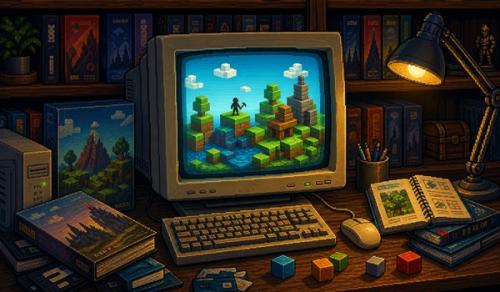
Minecraft began as a PC game, but the name now covers several editions, platforms and ways to play. On Windows, one purchase currently includes both Java Edition and Bedrock Edition, yet they remain separate games with different strengths.
This dossier explains which edition suits which player, what happens to older versions and why worlds, mods and server files matter as much as the launcher itself.
Choose Java Edition if you want extensive modding, community servers, access to many older release versions and support for Windows, macOS and Linux.
Choose Bedrock Edition if you mainly want cross-play with consoles and mobile devices, official featured servers, Marketplace content or the version built around the wider multi-platform ecosystem.
On Windows 10 and 11, the standard PC purchase includes both editions. You do not need to decide permanently before buying.
Java Edition is the continuation of the original PC version. Its long history, accessible file structure and enormous modding community make it the flexible choice for players who want to change the game or run their own servers.
Bedrock Edition belongs to the shared codebase used across Windows, consoles and mobile devices. That makes cross-play much easier, but it also creates a different ecosystem for add-ons, servers, accounts and paid Marketplace content.
The worlds are not simply interchangeable. Conversion tools exist, but redstone behaviour, commands, add-ons and version-specific features can make a converted world behave differently.
Java Edition is unusual because the official launcher can install many earlier release versions. That makes it possible to revisit older terrain generation, mechanics and interfaces without relying entirely on unofficial copies.
That does not automatically preserve every experience. A historic multiplayer server also depends on the correct server software, plugins, configuration, world files and sometimes a matching Java runtime.
Minecraft Classic in the browser preserves a small public version from 2009, but it is not a substitute for the full history of Java Edition.
A Minecraft world is more than its visible buildings. Keep the entire world folder, the exact game version, the seed when known, resource packs, data packs, screenshots and a short note describing which mods or server software were used.
For a modded installation, also preserve the mod loader and exact mod versions. A list of names alone is often not enough, because later releases may change dependencies or remove old downloads.
Before opening an old world in a newer version, make a separate copy. World upgrades are often one-way operations.
Minecraft shows how a PC game can become a platform of its own. Players build worlds, write mods, operate servers, create adventure maps and preserve old versions long after the original release.
It also demonstrates a recurring ownership question: buying the game grants access through an account and launcher, while the most personal part of the experience often lives locally in world and server files the player can copy and preserve.


